First steps
This guide walks you through the first steps of using Zadara Cost and Usage (CAU) Explorer.
Enabling Zadara Cost and Usage (CAU) Explorer
The CAU Explorer must be enabled for your environment before you can use it. Contact Zadara Support to enable the CAU Explorer.
To verify that the CAU Explorer is enabled:
Sign on to your Global Provisioning Portal account at https://manage.zadarastorage.com.
Note
If you do not have an account in the Global Provisioning Portal, go to https://manage.zadarastorage.com and select Sign Up to create one.
If the CAU Explorer is enabled, its icon appears in the icon collection on the Provisioning Portal’s top navigation bar.
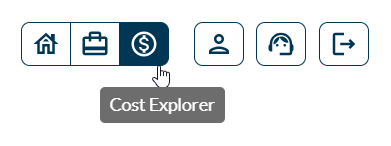
Clicking the icon opens the CAU Explorer, displaying the default view.
CAU Explorer access eligibility
CAU Explorer is available to users with a valid Zadara account in the Global Provisioning Portal at https://manage.zadarastorage.com.
Only users who have the Organization Admin or Organization Billing role can see their organization’s costs and usage.
Note
For any issues accessing the CAU Explorer, contact Zadara Support for assistance.
The CAU Explorer in the Global Provisioning Portal enables any user with a valid Zadara account to view their costs and usage, regardless of whether their account is associated with an on-prem implementation of Zadara services.
The CAU Explorer is a service that operates at the organization level. When enabled, it can be accessed by multiple personas in the organization.
Organization Admins who want to grant CAU Explorer permissions to other members of the organization should proceed with Inviting Users to CAU Explorer.
Important
By default, the organization’s administrator will have access to the CAU service, if it is enabled for that organization.
For organizations that manage sub-organizations, the administrator of each sub-organization will also have access to the CAU service, provided it is enabled for their respective sub-organization.
Restrict access
In sub-organizations, if CAU access is restricted, users with the Member role will not have access to the CAU service, even if the service is enabled.
Inviting Users to CAU Explorer
Users with the Organization Admin role can invite others to use CAU Explorer.
In the Global Provisioning Portal account, select Management from the options bar at the top right.
In the Management screen, select the Users tab.
A list of users and their roles appears.
At the top right of the Users tab header, click Invite User.
The Invite User dialog opens.
In the Invite User dialog, enter the user’s details:
Username:
Enter a sign-on username for the user.
Minimum length: 3 characters
Maximum length: 75 characters
Alphanumeric characters and the following are permitted in the Username:
Hyphen:
-Underscore:
_At-symbol:
@Plus-symbol:
+
Email address:
Enter the user’s email address.
An email invitation will be sent to this address. It includes:
A link to the Provisioning Portal sign-on screen, that activates the account.
The sign-on username and a temporary password.
Organization name:
From the dropdown, select the organization that the user can access for viewing billing data.
Organization role:
From the dropdown, select one of the following roles:
Organization Admin:
Full admin privileges in the Provisioning Portal.
Organization Billing:
A role that can access the CAU Explorer, and can also manage service inventory items and provision new Zadara services for the account.
This role grants access to CAU Explorer in addition to permissions to manage service inventory items and provision Zadara services.
Note
Organization Member role users cannot access the CAU Explorer.
Click Invite User.
The user receives an email invitation to access the Provisioning Portal as a member of the specified role.
On first sign-on, users are prompted to change their password.
Note
Our recommended practice is to configure the optional second-factor authentication (2FA) during the first sign-on.
How usage is detected
Both public and private Zadara clouds track and report usage activity for provisioned resources to a centralized service, which is later securely visualized in Zadara’s Global Provisioning Portal.